One of the things we hear most from new Verslay users is: "I expected this to be complicated." It isn't. But it looks like it should be — 98 agents, 58 use-cases, 13 OAuth providers, 156 MCP tools. That's a lot of surface area.
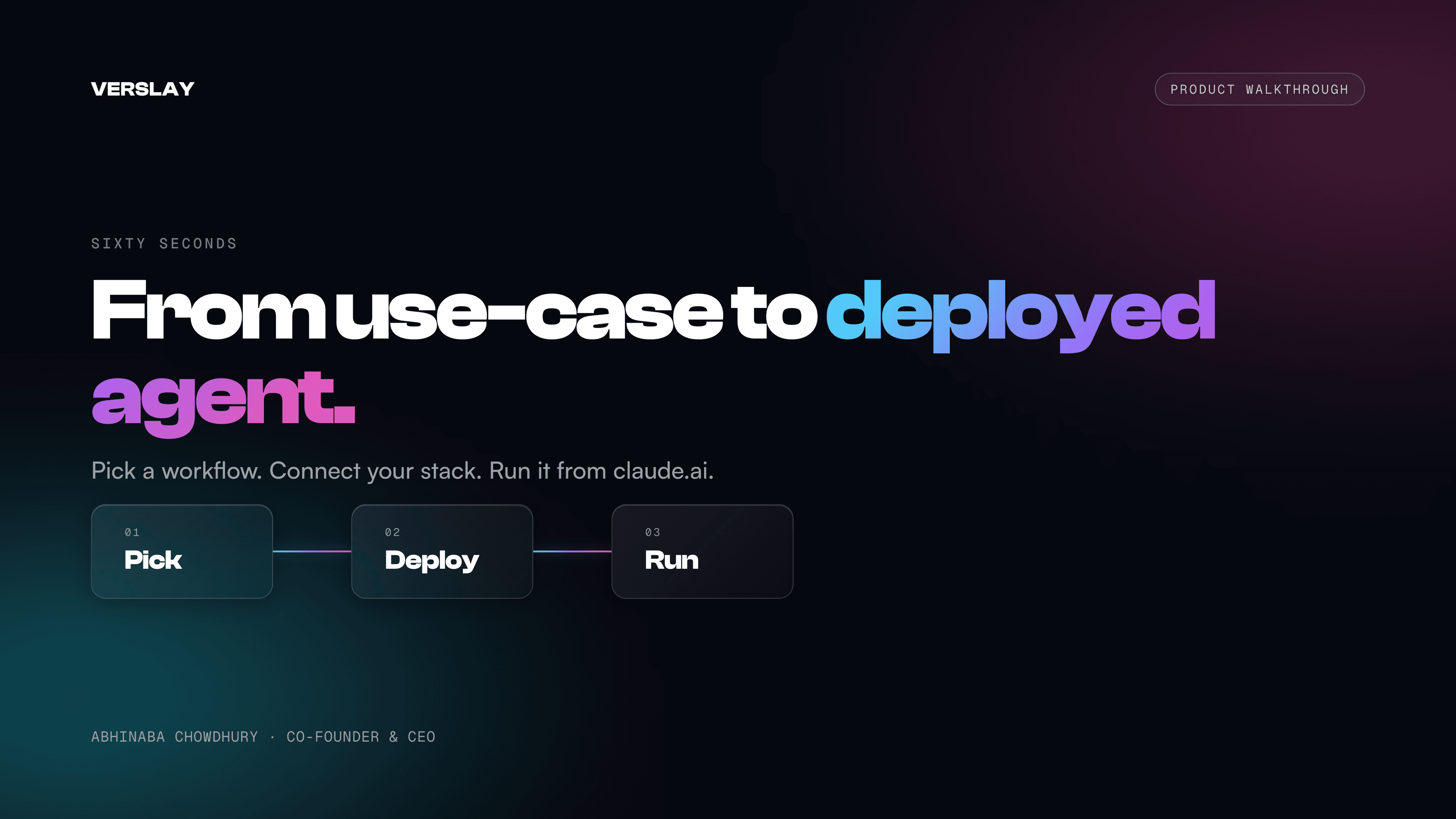
Here's the actual 60-second path from "I just signed up" to "my agents are running."
Step 0: What a Use-Case Actually Is
Before the walkthrough, a definition: a use-case is a pre-assembled workflow that combines 2-6 agents to solve a specific business problem.
The Executive Morning Brief use-case, for example, combines:
- The Market Intelligence agent (pulls competitor news, industry headlines)
- The Revenue Dashboard agent (summarizes Shopify or HubSpot deal activity)
- The Email Summarizer agent (surfaces top 5 priority threads from Gmail)
- The Calendar Intelligence agent (shows today's schedule, flags conflicts)
Each agent knows its role. The use-case defines the order, the handoffs, and the output format. You get a single structured briefing — not four separate outputs you have to stitch together yourself.
Step 1: Choose a Use-Case
After signing in at hub.verslay.com, navigate to Use Cases. You'll see 58 pre-built workflows organized by department and industry. Filters include category (Marketing, Sales, Operations, Finance, etc.) and connection readiness — you can filter to "ready now" to see only the workflows where your current integrations are sufficient.
Click a use-case to open the detail view. You'll see:
- The problem it solves — one sentence
- The agents it uses — with their types (Monolithic, Atomic, Special)
- Required connections — which OAuth providers or API keys it needs
- Workflow steps — the exact execution sequence
- Example prompts — word-for-word inputs that trigger the workflow in claude.ai
If you're missing a connection, the detail view shows a direct "Connect" button. OAuth flows complete in under 30 seconds.
Step 2: Enable the Use-Case
Hit Enable in the top-right of the detail view. This does two things:
- Marks the use-case as enabled in your account (tracked in the dashboard as "Use Cases Ready")
- Auto-enables the component agents if they aren't already
You'll see a confirmation with an animated deploy overlay. The agents are now in your "enabled" stack.
You don't need to manually enable individual agents if you're working from use-cases. The use-case enable flow handles it automatically.
Step 3: Deploy in claude.ai
Open claude.ai (the model is Claude 3.5+ or Claude 3 Opus — any recent version works). In a new conversation, type:
verslay_initialize
This is the first MCP tool call. It does a lot in one shot:
- Authenticates your session via your Verslay API key
- Fetches your enabled agent stack from Verslay's MCP server
- Loads your memory context (the 14 sections you filled in during onboarding)
- Returns your personalized initialization payload
You'll see Claude respond with a confirmation: your enabled agent count, your memory sections loaded, and a prompt to call verslay_deploy when you're ready.
Then:
verslay_deploy
This triggers Smart Context Assembly v3 — the system assembles the SKILL.md instructions for your enabled agents into a structured deployment payload. The payload includes the agent capabilities, the tool permissions, the memory context, and any provider-specific configurations (like your shop domain for Shopify multi-shop setups).
Claude loads this payload and is now operating in "Verslay agent mode" — your session has access to all your enabled agents and their tools.
Step 4: Run the Use-Case
Now you just ask for what you want. Using the Executive Morning Brief as the example:
Run my morning brief.
Or more specifically:
Pull my morning brief — top 3 news items about my competitors,
yesterday's revenue from Shopify, my top 5 Gmail priority threads,
and my calendar conflicts for today.
Claude selects the right agents, fires the tools in sequence, and returns a structured briefing in under 90 seconds.
The briefing looks like:
Market Intelligence — 3 items from your configured competitor + industry watchlist
Revenue Summary — Total revenue, top SKUs, order volume vs. prior 7d
Priority Inbox — Subject line, sender, urgency rating, recommended action for each thread
Calendar — Today's events, back-to-back conflicts, prep time availability
Every section cites where the data came from. Nothing hallucinated.
What Happens Under the Hood
A few things worth knowing if you're curious about the mechanics:
Tool routing: When you call verslay_deploy, the MCP server registers the tools for your enabled agents dynamically. Gmail tools only appear if you've connected Gmail. Shopify tools only appear if you've connected Shopify. The MCP server enforces this — the tools aren't available until the connection is verified.
Session persistence: If you close claude.ai and come back, you'll call verslay_initialize + verslay_deploy again. This is intentional — we don't persist your agent session on the server (no AI on our infrastructure). The initialization is fast enough that re-running it isn't a friction point.
Memory reads: Every agent that executes reads your memory context at the start of its run. So when the Email Summarizer flags "priority threads," it knows what "priority" means to you — your key customer names, your current deals, your team structure — because that's in your memory store.
The 6 Most Popular Use-Cases (Right Now)
Based on active usage across Verslay accounts:
- Executive Morning Brief — Daily situational awareness in one prompt
- Lead to Close Pipeline — HubSpot-first sales workflow from lead score to closed deal
- Morning Command Center — Operations-focused daily kickoff (inventory, support queue, team tasks)
- Revenue Dashboard — Weekly revenue summary with trend analysis and anomaly flags
- Ad Campaign Analyzer — Meta + LinkedIn campaign performance with reallocation recommendations
- Board & Investor Report — Quarterly narrative + financial summary, drafted in 10 minutes
These six are "featured" in the Verslay dashboard and on the landing page. They're the workflows where we've seen the clearest before/after time savings from users.
What to Do After Your First Run
Once you've run a use-case successfully, three things help compound the value:
-
Fill in your memory store — The more your memory sections contain (brand voice, competitor names, key customer names, pricing tiers), the more specific every agent output becomes. Each section takes 2-3 minutes to fill in from the Memory page.
-
Explore adjacent use-cases — If you enabled Morning Brief, you'll likely find Revenue Dashboard and Ad Campaign Analyzer both apply to your situation. Enable them while you're in the flow.
-
Use
verslay_memorizeto train from outputs — After a useful agent run, you can tell Claude to "memorize this decision" or "save this as a preference." The agent stores it in your episodic memory timeline, making future runs smarter.
The 58 use-cases are organized by department, industry, and connection readiness. Filter to what applies to your business and see how many you can run today.